Standalone Firmware Connection & Setup Guide

Accessing the Yardian Pro in Standalone Mode

4 Connection Modes

Direct Connect Mode (WiFi AP Mode)

Use this mode when there is no local Wi-Fi or internet available at the installation site. In this mode, your cellphone connects directly to the controller’s SSID. You can then use your mobile browser to access the web interface for full configuration and control. The main LED will be blinking blue and green.

Local Network Mode (LAN)

When a local network (router) is available. You can access the controller’s web interface by entering its IP address into a browser on your smartphone or computer for full configuration and control. The main LED will stay solid white.

Wired Internet Mode (Ethernet)

Use this mode when an internet connection is available, and you require the most stable network signal. While the controller is in Direct Connect Mode (Wi-Fi AP Mode), simply connect it to a router via an Ethernet cable. The system will automatically detect the network and establish an internet connection. LED Indicator: Once connected, the main LED will turn solid blue.

Wireless Internet Mode (Wi-Fi)

Use this mode when an internet connection is available, but running a physical cable is not convenient. While in Direct Connect Mode, simply enter your local Wi-Fi SSID (Network Name) and Password through the web interface. The controller will then switch to wireless mode to connect to the network. Once connected, the main LED will turn solid green.

1. Direct Connect Mode (Wi-Fi AP Mode)

Overview

Controller Wi-Fi Defaults to "Direct Connect Mode"

The Standalone Firmware is designed for standalone operation and does not rely on a cloud connection. If there is no local Wi-Fi available at your installation site, you can use Direct Connect Mode to link your phone directly to the controller for full configuration and control.

⚠️ Important Notes:

  • Signal Range: When using this mode, we recommend keeping your smartphone within the line of sight of the controller to ensure a stable connection.

  • Mobile Data: Some smartphones may require you to disable mobile data to successfully establish the connection to the controller.

  • Internet Access: While your phone is directly connected to the controller’s Wi-Fi, it may temporarily lose internet access (since it is linked to the controller rather than a router). Once setup is complete, remember to disconnect from the controller’s Wi-Fi to restore your phone’s normal internet connection.

⚠️ How to Reset to Direct Connect Mode:

If you need to switch the controller’s Wi-Fi back to Direct Connect Mode (Wi-Fi AP Mode):

  1. Press and hold the Wi-Fi reset button for more than 5 seconds.

  2. Release the button once the main LED starts blinking blue and green.

Please Check Before Starting

Verify the LED status on the controller panel. It should be alternating between Blue and Green (indicating the controller is in Wi-Fi AP Mode).

If the LED is not in this state:

  1. Press and hold the Wi-Fi Reset button on the panel for more than 5 seconds.

  2. Release the button once you see the Blue and Green lights begin to alternate.

Step-by-Step Guide

1. Connect to the Controller’s Wi-Fi

Enable Wi-Fi on your smartphone and search for the network (SSID) that includes your 8-digit identifier.

  • Example: Connect to ami-control-A1B2C34D as shown in the illustration.

2. Access the Management Interface

Once connected, you can access the controller’s dashboard using one of two methods:

  • Scan the QR Code provided on the device/manual.

  • Open your browser and enter the IP address: 10.88.88.1 in the address bar.

3. Log In to the Dashboard

Enter the default credentials to access the control interface:

User Type Default Username Default Password
Administrator admin 1234
Guest User guest 1234


You are now connected and ready to operate the controller.

You can now set the controller’s system time by following these steps:

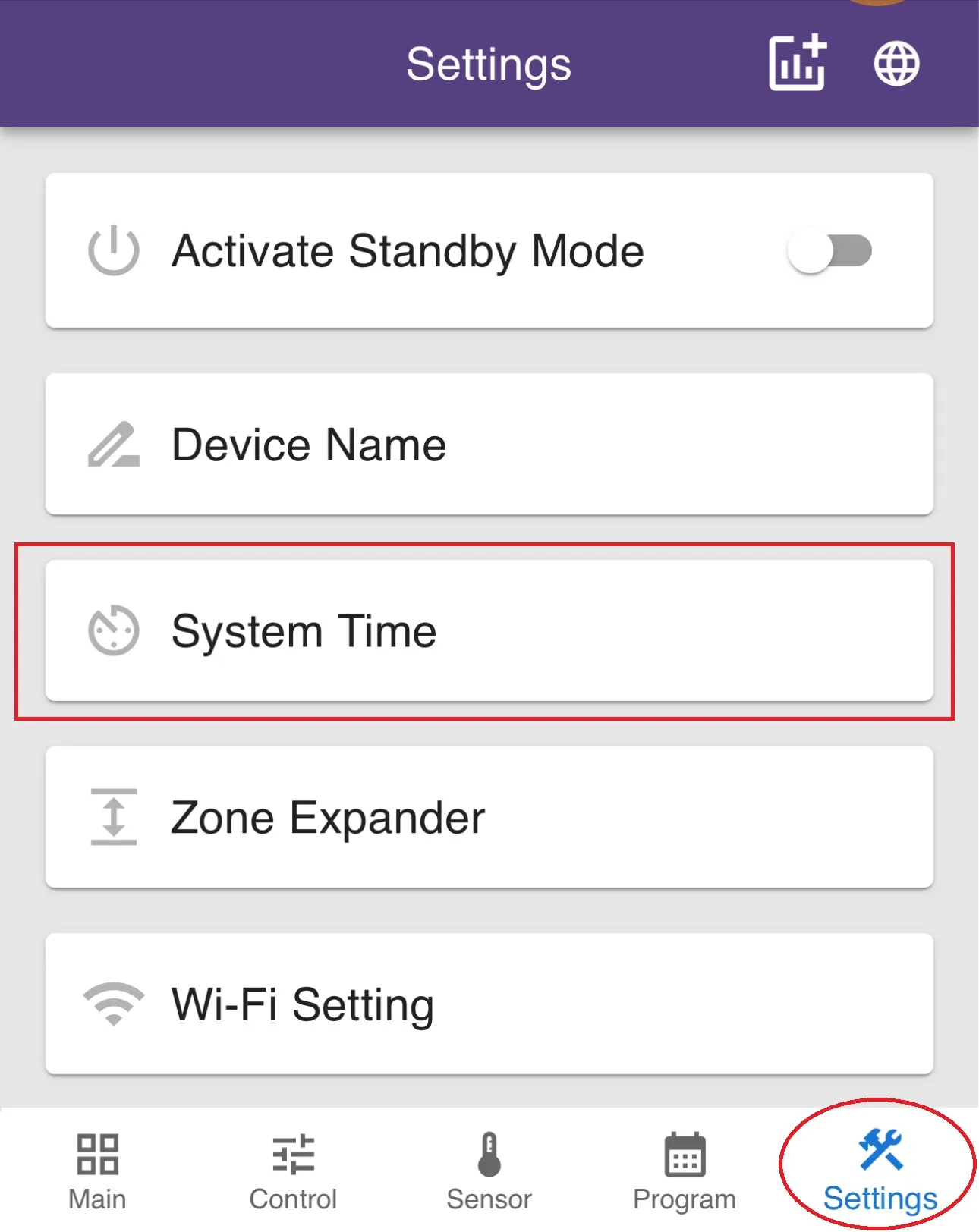
Step 1: Select “Settings” and click on “System Time.”

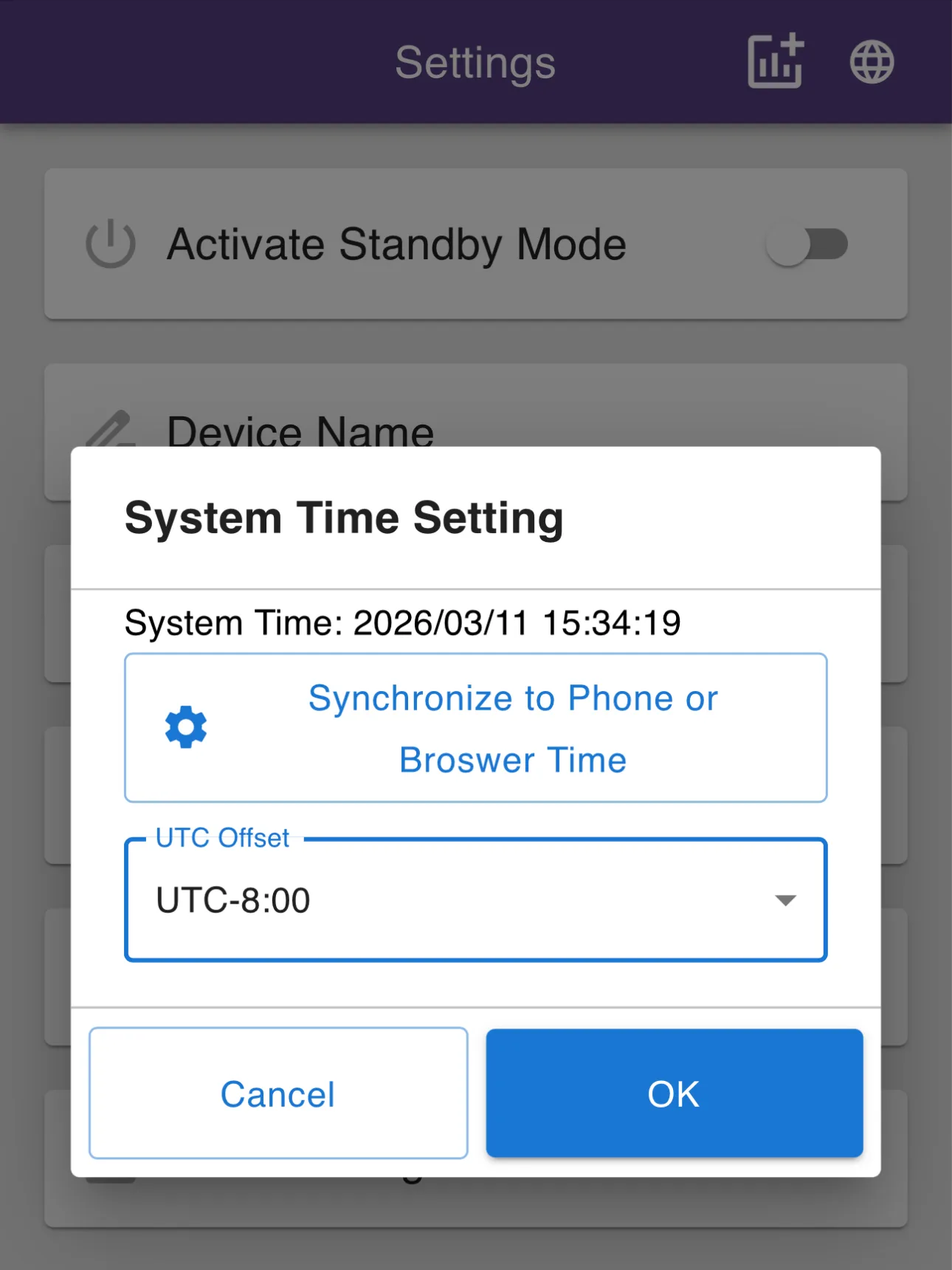
Step 2: In the “UTC Offset” dropdown, select your local time zone (e.g., “UTC-08:00”).

Step 3: Click “Sync Browser Time” to complete the calibration.

2. Internet Mode

Wired Internet Mode (Ethernet)

While the controller is in Direct Connect Mode (Wi-Fi AP Mode, blinking blue and green), simply connect an Ethernet cable for plug-and-play connectivity. The device will automatically detect and establish an internet connection. Once connected, the main LED will turn solid blue.

⚠️ How to Reset to Direct Connect Mode:

If you need to switch the controller’s Wi-Fi back to Direct Connect Mode (Wi-Fi AP Mode):

  1. Press and hold the Wi-Fi reset button for more than 5 seconds.

  2. Release the button once the main LED starts blinking blue and green.

Wireless Internet Mode (Wi-Fi)

While the controller is in Direct Connect Mode (blinking blue and green), enter 10.88.88.1 into your browser’s address bar to access the management interface:

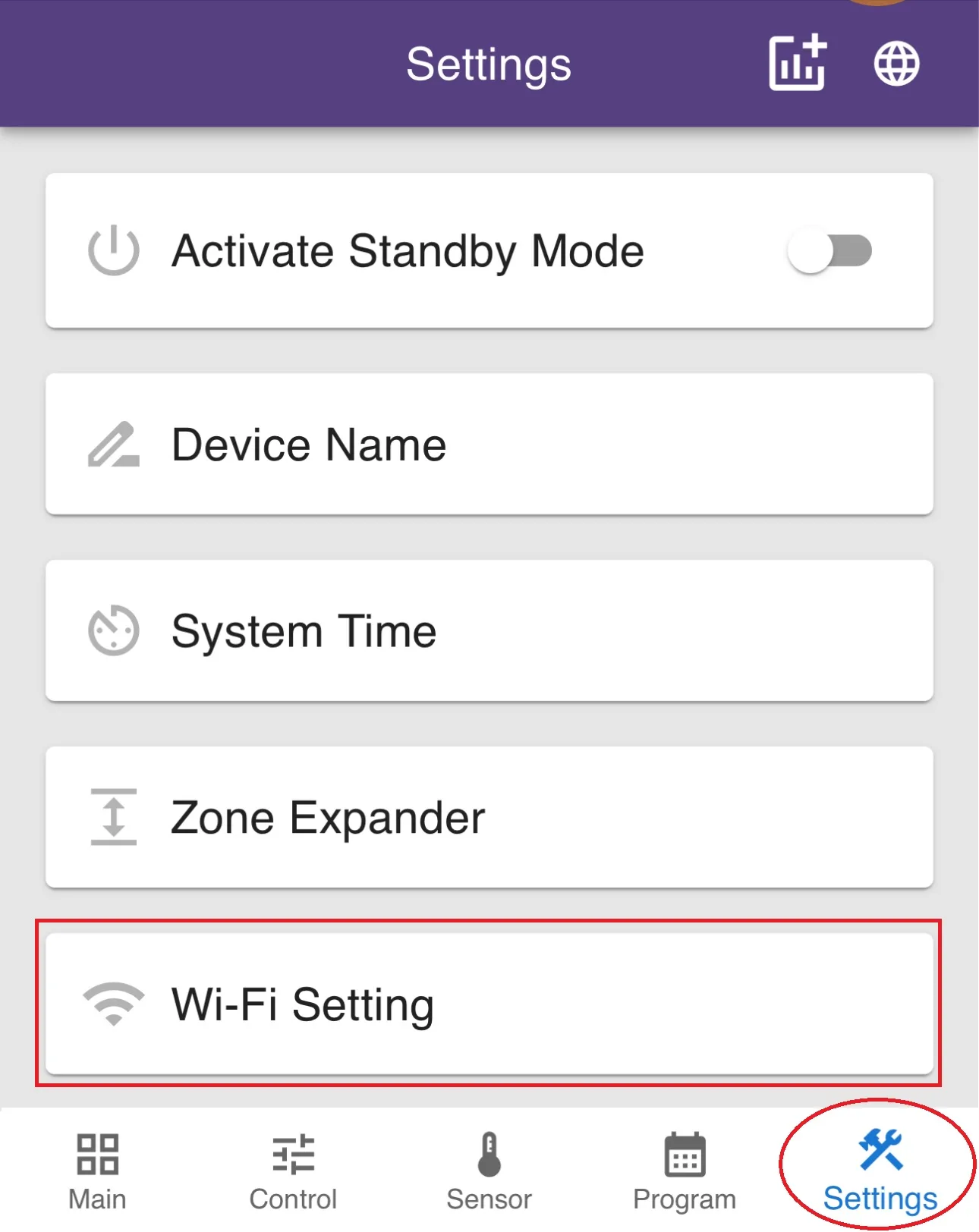
  • Step 1: Select “Settings” and click on “Wi-Fi Settings.”

  • Step 2: Within the Wi-Fi Settings form, select “Wireless Connection Mode.”

  • Step 3: Enter your local “SSID” (Network Name) and “Password,” then click the “OK” button to complete the setup.

Once connected, the main LED will turn solid green.

⚠️ How to Reset to Direct Connect Mode:

If you need to switch the controller’s Wi-Fi back to Direct Connect Mode (Wi-Fi AP Mode):

  1. Press and hold the Wi-Fi reset button for more than 5 seconds.

  2. Release the button once the main LED starts blinking blue and green.

Please contact our support team at support@aeonmatrix.com for further assistance.